Refund an Order
These are the steps to fully or partially refund an order.
To start go to the original order you wish to refund.
- At the top right corner of the order click the Refund button
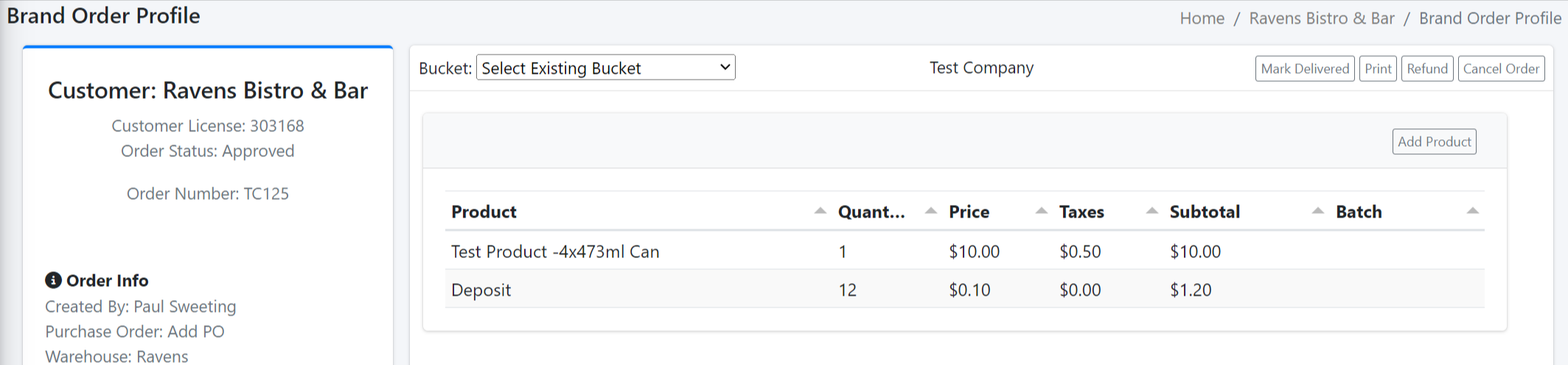
- Confirm that you want to refund your order
- Once confirmed, Dovetail will automatically create a new refund order with the same number of items as the original order.
- The new refund order will have the same order number as the original but with a -R at then end of the number.
- You can now modify the new refund order by removing the items that are not being refunded
- You can change the amount of any item or,
- right-click on a row to delete the entire row
- If complete you can approve and mark delivered (to remove the order from pending)
If you used Stripe to collect payment, use these steps to refund the payment.
- On the new refund order the original stripe transaction will be listed in the Stripe Transactions Table
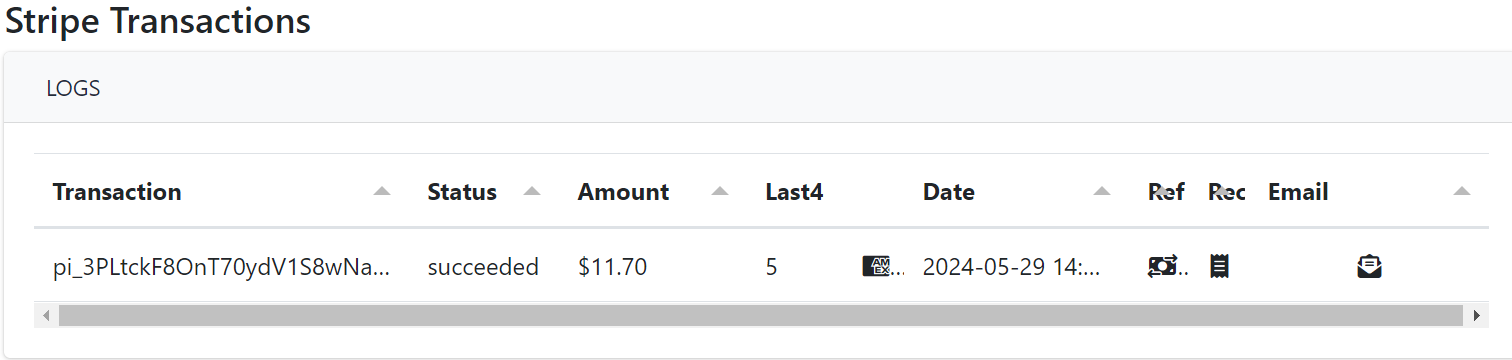
- Click the dollar button below the Ref column to refund the stripe transaction.
- Note: this will refund the amount of the refund order. If you are only doing a partial refund it will refund only that amount.
- One you confirm that you want to proceed, Dovetail will refund the Stripe transaction for the amount of the refund.
- The page will refresh and a second transaction will show on the Stripe Transaction table, confirming or showing the error of the refund transaction.
- Once you have finished the Stripe portion of the refund you can then approve and mark delivered (to remove from pending)